 0:00
0:00
Introduction
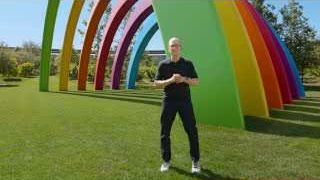
Tim Cook opens at Apple Park; Craig Federighi frames the three focus areas for the release.
Takeaway — the new macOS release is officially named macOS Golden Gate.
Visual evidence
AI Watch
AI Watch examines the actual frames and audio, then answers with timestamped visual evidence.
10 free Watch minutesNo card required
 Open the full AI Watch analysis of Apple’s WWDC 2026 keynote
1:16:14
Moments
Active frame
Visual timeline
Ask AI Watch
What changes on screen at 10:59?
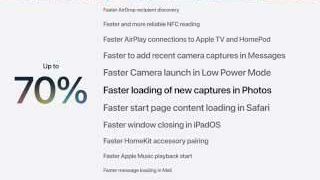
A performance slide appears — photo loading is credited as up to 70% faster.
An illustration of the real workspace, filled with an actual AI Watch run on Apple’s public WWDC 2026 keynote. Every frame and timestamp above comes from that analysis — read it in full on the Apple demo page.
AI Watch splits the video into chapters, picks the frames that carry the meaning, and writes each chapter from what was actually shown and said.
0:00
Tim Cook opens at Apple Park; Craig Federighi frames the three focus areas for the release.
Takeaway — the new macOS release is officially named macOS Golden Gate.
Visual evidence
 5:04
5:04
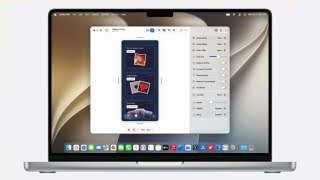
Design and performance refinements: customizable Liquid Glass, a uniform macOS toolbar, and system-wide speed work.
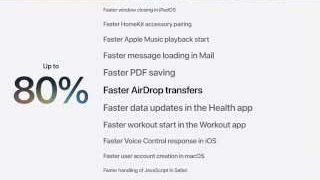
Takeaway — up to 30% faster app launches and 80% faster AirDrop transfers.
Visual evidence
 16:56
16:56
New child-safety controls — “Ask to Browse” for websites and per-category Time Allowances — plus a redesigned Screen Time.
Takeaway — Screen Time was rebuilt for quicker parental adjustments.
Visual evidence
 27:53
27:53
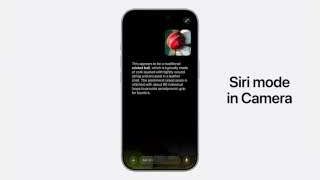
A privacy-first AI architecture integrated system-wide, built on the Apple Foundation Models.
Takeaway — image understanding and generation arrive across the system.
Visual evidence
0:28Tim Cook opens the keynote
10:59Photo loading speed slide
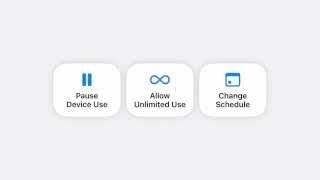 25:40Redesigned Screen Time
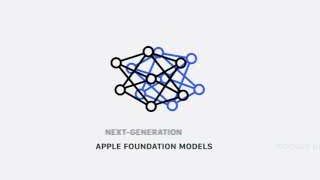 29:29Apple Foundation Models
What does Craig Federighi name the new macOS release at 4:48?
Correct. The name is announced on stage at 4:48, and the frame at that timestamp is stored as the evidence.
See it in the real analysisStudy from what actually happened on screen.
AI Watch pulls answers from visuals and audio.
One click takes you to the exact moment.
What performance number is on screen at 10:59?
Up to 70% — the slide credits faster loading of new photos.
And what does the slide at 11:06 claim?
Up to 80% — the improvement is credited to AirDrop transfers.
10:59
Sits inside the performance run at 10:33–11:06, between the app-launch and AirDrop slides.
Every claim points at a stored frame and timestamp you can open and check.
Transcript credits and Watch minutes are separate allowances, tracked separately.
10 free Watch minutesNo card required
AI Watch is an AI video summarizer that analyses what a YouTube video actually shows, not only what is said. Paste a public YouTube link and Watch returns a structured journey of the whole video: a scannable TL;DR, chapter-by-chapter summaries anchored to real frames from the video, the transcript excerpt for each chapter, and the concrete takeaways. Because the analysis is multimodal, it captures slides, charts, product demos, code on screen, and on-screen text that caption-only summarizers miss. Every element is clickable — a timestamp, a quote, or a frame jumps the player to that exact second, so you can verify any claim in one click. You can reshape the same analysis as a quick recap, a full journey, or study notes with a self-test, ask follow-up questions that are answered with timestamp citations, and export everything as Markdown.
Want proof rather than promises? See a complete, unedited Watch analysis of Apple’s 76-minute WWDC 2026 keynote — every chapter, frame, and takeaway on one page.
Switching views is instant and free — it reshapes the same analysis rather than re-running it.
Most “AI video summarizers” are transcript summarizers: they condense the captions and never see the screen. That fails exactly where video is most valuable — the slide with the numbers, the chart that contradicts the narration, the demo step the speaker only points at. Watch’s evidence index records what was shown at each moment, including on-screen text, and its answers cite those moments. If a key point looks wrong, click the timestamp and check the frame yourself.
An honest comparison against the tools people usually consider. Fuller breakdown in the VidWords vs Eightify vs NoteGPT guide.
| VidWords AI Watch | Eightify | NoteGPT | summarize.tech | |
|---|---|---|---|---|
| Real video frames in the summary | Yes | Not documented on the public page checked | Not documented for YouTube summaries on the page checked | Not documented on the public page checked |
| Verbatim quotes with timestamps | Yes, in-line | Not documented on the public page checked | Not documented on the public page checked | Not documented on the public page checked |
| Study notes + self-test | Yes | Student use is documented; a self-test was not | Flashcard and study tools are available separately | Not documented on the public page checked |
| Q&A with timestamp citations | Yes | Not documented on the public page checked | AI chat is documented; timestamp citations were not | Not documented on the public page checked |
| Works without captions | Yes (reads audio + frames) | Not documented on the public page checked | No-subtitle support is advertised with plan limits | Not documented on the public page checked |
| Markdown export | Yes, free | Not documented on the public page checked | Free-plan limits apply | Not documented on the public page checked |
| Full transcript included | Yes — it’s built on one | Yes | Yes | Not documented on the public page checked |
| Price | Free plan · paid plans from $10/mo | Verify current offer | Verify current offer | Verify current offer |
Method: public pages checked July 12, 2026. Sources: Eightify, NoteGPT YouTube summarizer, NoteGPT pricing, and summarize.tech. “Not documented” does not prove a feature is absent from a logged-in product. Verify current terms before deciding.
VidWords meters two things separately. Transcript credits pay for pulling text out of a video. Watch minutes pay for the visual analysis, and are counted in minutes of video analyzed — one minute of video is one Watch minute at Smart depth, half at Quick, double at Deep. Running out of one never touches the other.
Free accounts include 10 Watch minutes and 2 questions — enough to try the journey on a real video, with no card. If an analysis fails, the minutes are refunded automatically: you only ever pay for results. Starter ($10/mo) includes 60 Watch minutes a month — about 3–4 lecture or conference-talk recaps. Pro ($25/mo) includes 300 minutes plus Deep mode — a full course or a week of conference sessions. Advanced ($69/mo) includes 900 minutes. Ran out mid-month? Top-up credits cover the difference at 3 credits per minute. Details on the pricing page.
A transcript is every word, verbatim — best when you need exact text to quote, search, or feed to other tools. AI Watch is understanding: it condenses the video into chapters, shows you the frames that matter, and answers questions. They work together — the journey quotes the transcript throughout.
Yes. When captions don’t exist, Watch interprets the audio directly alongside the frames, and labels that spoken evidence accordingly.
Analysis depth. Quick is a fast overview at half the minute cost; Smart is the balanced default; Deep samples twice as many frames for slide-heavy or demo-heavy videos at double the minute cost. Deep is included on Pro and Advanced.
Free: up to 10 minutes. Starter: videos up to 30 minutes. Pro: up to 2 hours. Advanced: up to 3 hours. Long videos are analyzed in chapter-aligned windows so the journey stays coherent — and when a video is longer than your plan’s cap, Watch offers to analyze the first minutes it does cover.
Your Watch minutes are refunded automatically. VidWords only keeps the charge when it delivers a finished analysis.
Answers come with citations — each one points at a timestamp (and, for visual claims, a frame) from the stored analysis. If the evidence isn’t there, Watch says so instead of guessing.
Yes — copy to clipboard or download as Markdown (TL;DR, chapters, key moments, quotes). It drops straight into Notion, Obsidian, or a study doc.